LumaFrame HDR Photos
Your best photos, with their full light intact.
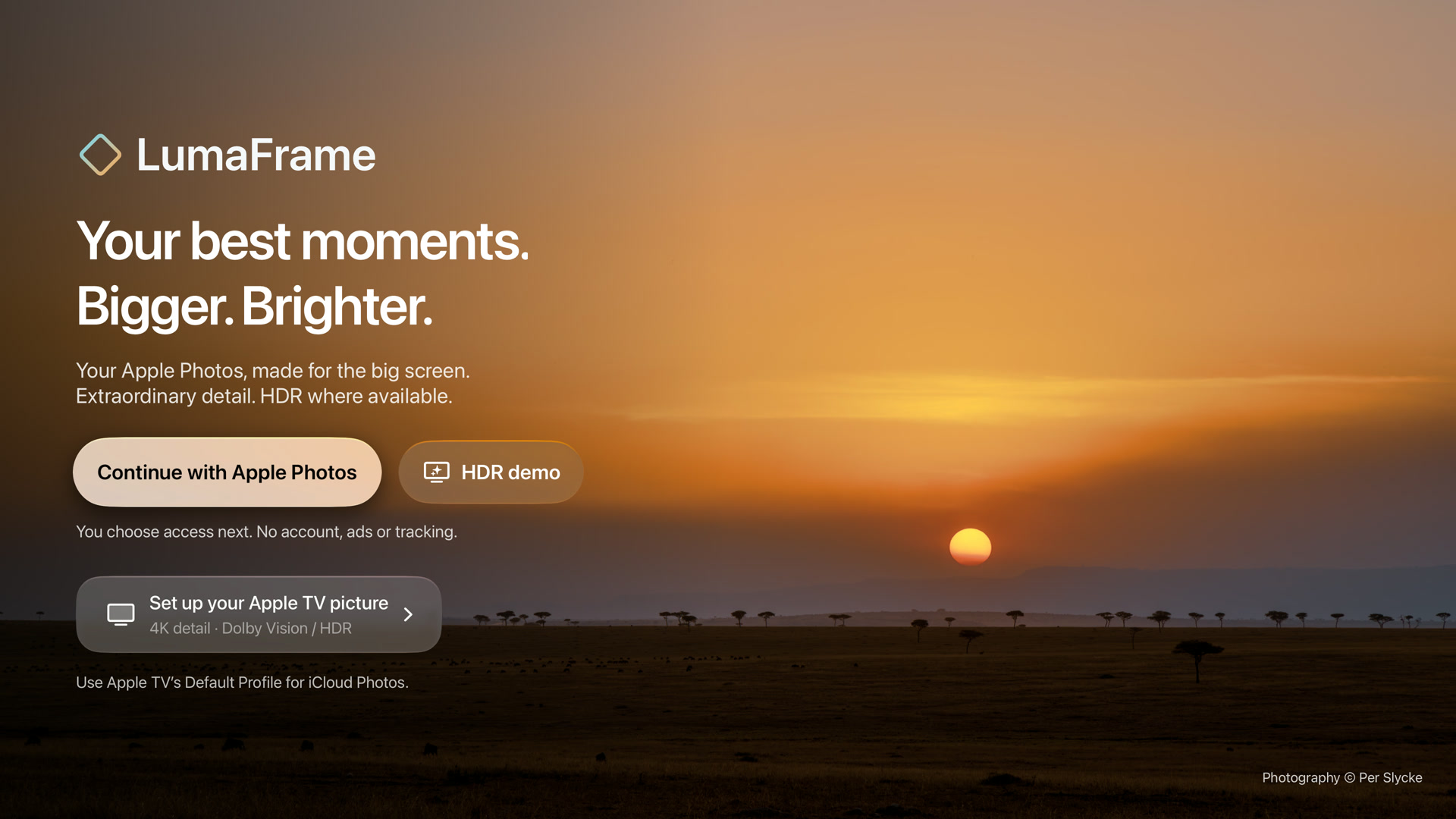
Full-screen HDR slideshows on Apple TV 4K, from the Apple Photos library you already use. It works with photographs finished in Lightroom and photos taken on iPhone.
In-browser HDR demo
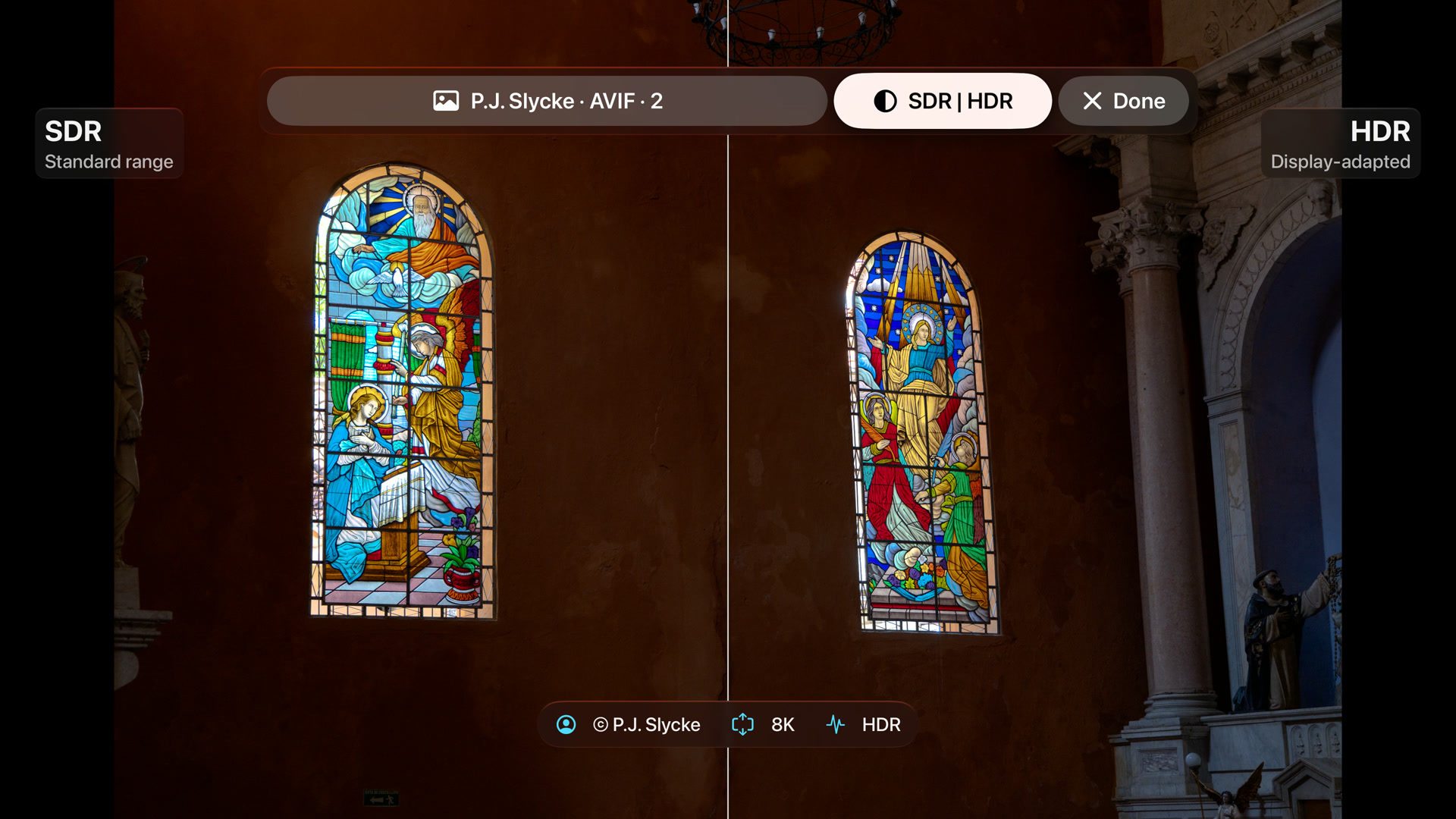
See the difference HDR makes.
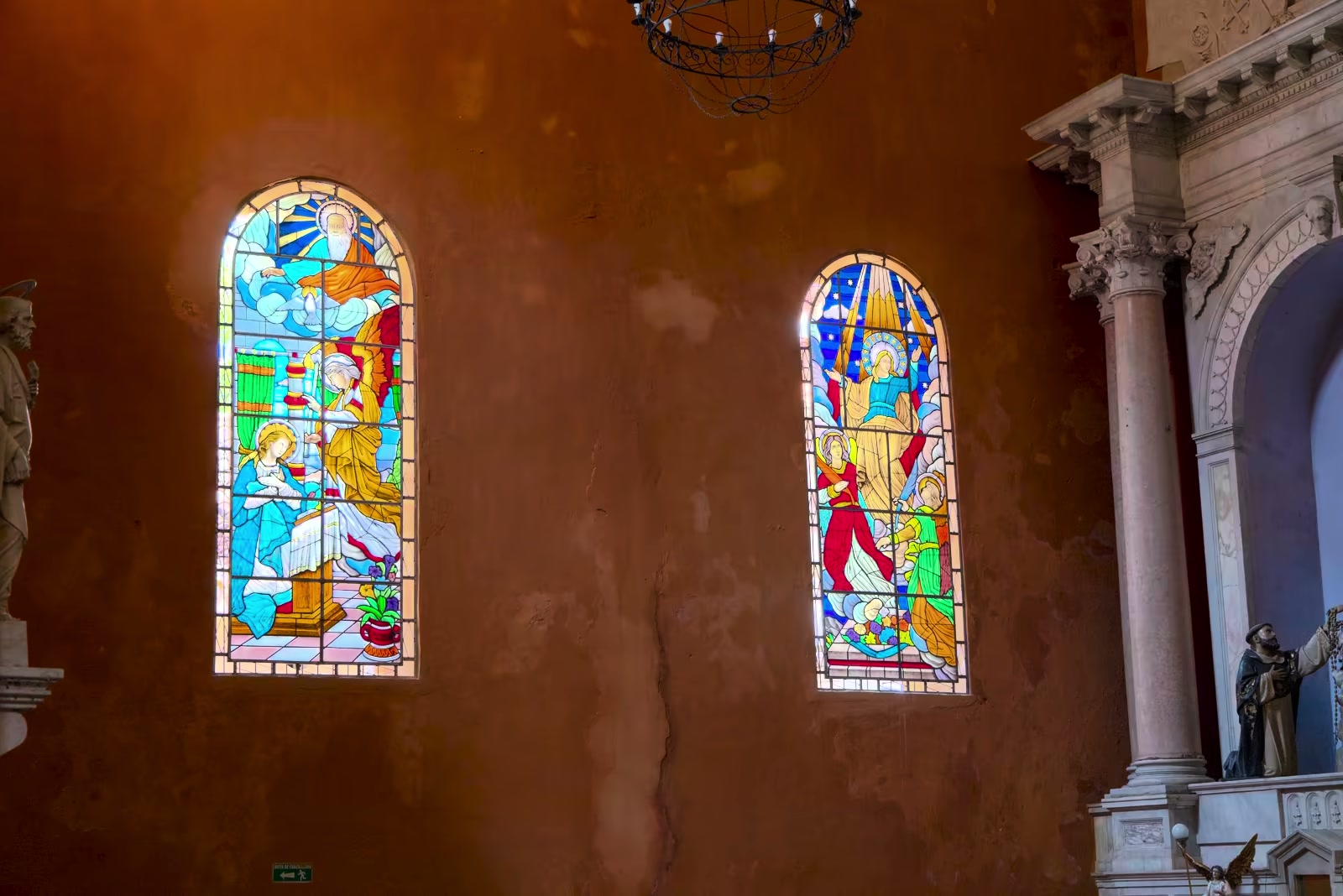
Drag to compare the same photograph in SDR and HDR. With a compatible display, the light through the stained glass can shine brighter.

Inside LumaFrame
Pick an album. Press play.
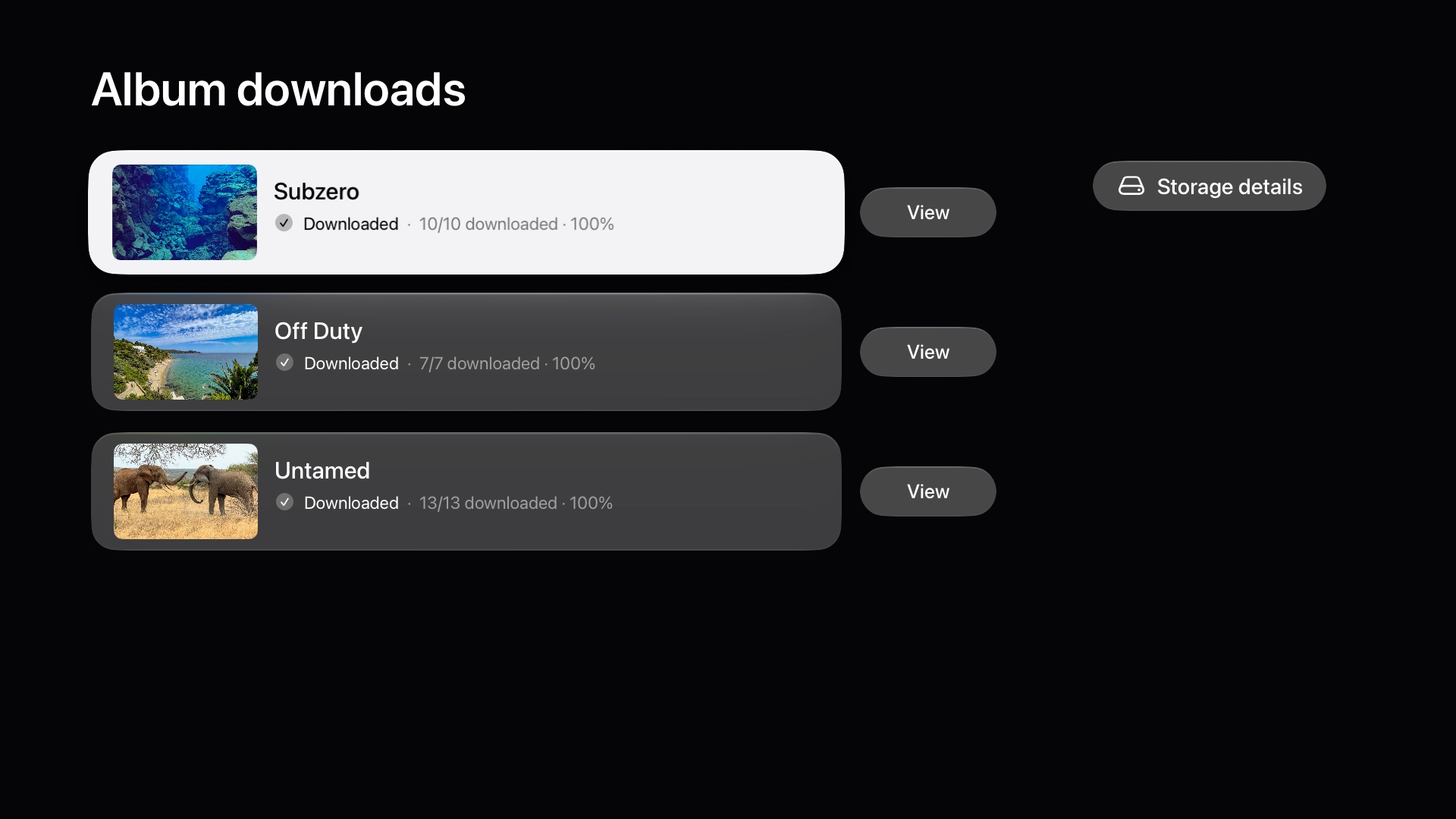
Browse your albums, Shared Albums, Favorites, and All Photos with the Siri Remote. Photos and videos play together in a full-screen slideshow.
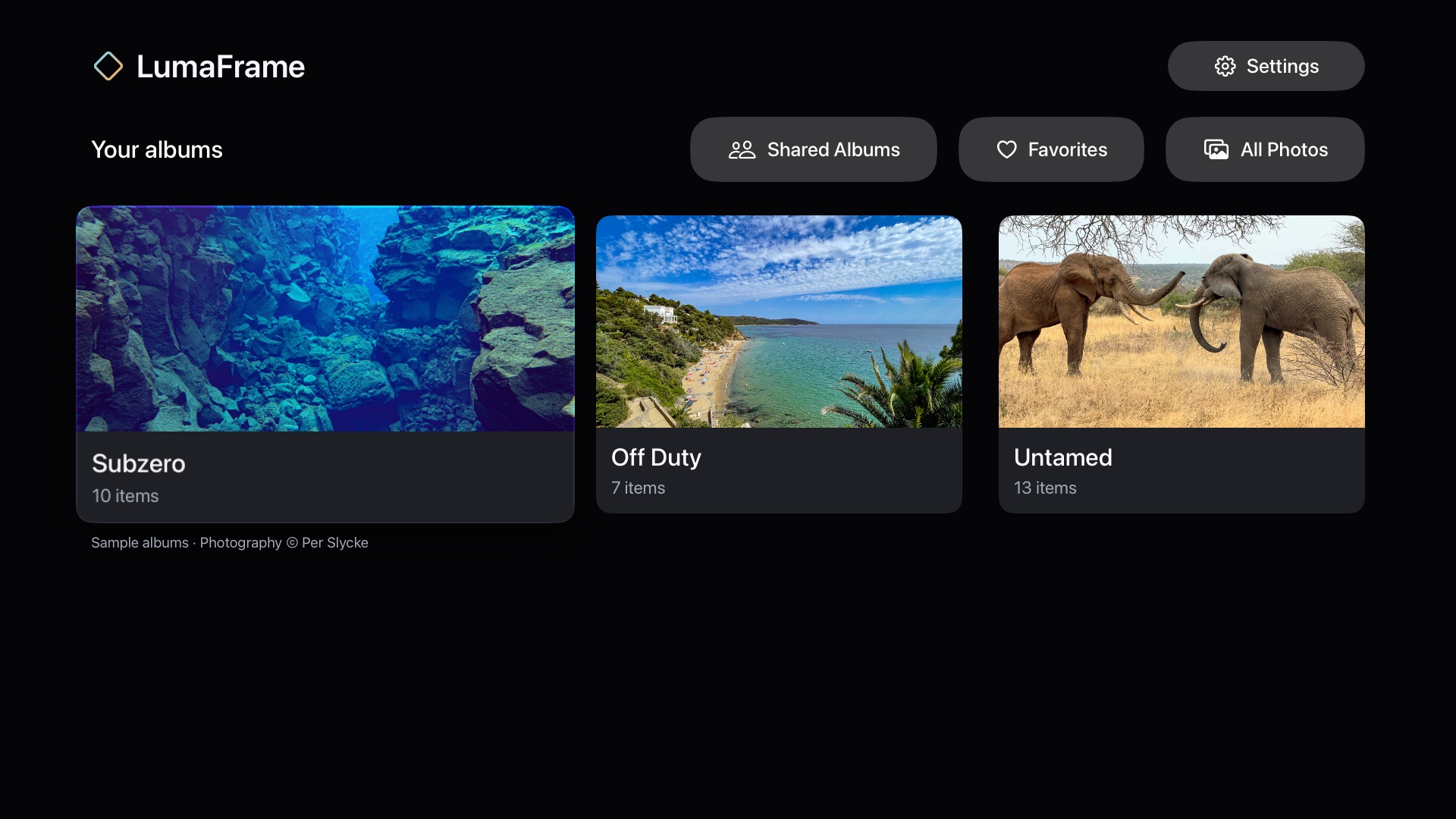
Photography © Per Slycke
From the developer
Why I built LumaFrame.
I built LumaFrame because I wanted my family to see the photographs in their full light, as life-like as possible.Per Slycke, creator of LumaFrame
My full-frame camera photos looked wonderful after editing in Lightroom HDR. But I couldn’t find a way to play them as a 4K HDR slideshow on the most capable display in our house: the television.
Apple Photos made sense as the library. It keeps photographs from Canon, Nikon, Sony, and other cameras alongside iPhone photos, with HDR viewing on compatible iPhones, iPads, Macs, and XDR displays. LumaFrame brings that collection to the living room.
Resolution, HDR support, and sources
How the options compare
-
Lightroom exports
Adobe supports HDR editing and export. HDR JPEG can carry a gain map for adaptive display, while AVIF preserves 10-bit HDR data. Adobe export documentation
-
Lightroom on Apple TV
Adobe describes Smart Previews capped at 2,560 pixels on the long edge and sRGB output. Development stopped in January 2022. Resolution clarification · Adobe FAQ
-
Apple Photos
Apple’s display stack supports HDR photography across iPhone, iPad Pro, Mac, and XDR displays. Apple’s tvOS Photos guide documents full-resolution viewing and slideshows, but not HDR still-photo presentation. Apple’s EDR overview · Apple TV Photos guide
-
LumaFrame
Requires Apple TV 4K (2nd generation or later) with tvOS 27.0 or later. Compatible photos are prepared for a 3,840 × 2,160 display area while preserving HDR information. Actual detail depends on the source and its aspect ratio; HDR requires a compatible television and Apple TV output settings.
Learn HDR photography
For a helpful starting point, we recommend Greg Benz’s guide to HDR photography. His educational work explains HDR editing, sharing, and display compatibility with practical tutorials and examples.
Workflow tips
Bring your edits to Apple Photos.
For photographs edited in Lightroom, start here. Photos already in your library are ready to browse.
-
1
Edit in Lightroom
Use HDR mode on a compatible display. Check the SDR preview too, so your photo also looks good on standard displays.
-
2
Export with HDR Output
Keep the original dimensions. We recommend AVIF at 90% quality for compatibility with LumaFrame and much smaller files.
-
3
Import and sync
Add the exports to an album in Apple Photos and let iCloud Photos finish syncing.
-
4
Open on Apple TV
Grant LumaFrame access to Photos, choose the album, and start your slideshow.
Try one photo first. Check it on your television before exporting a whole collection.
Available on the App Store
Bring your photos to the big screen.
Download LumaFrame HDR Photos for Apple TV 4K (2nd generation or later), running tvOS 27.0 or later. Need help with setup or compatibility? We’re here.
No account to create. No ads or tracking. Privacy policy